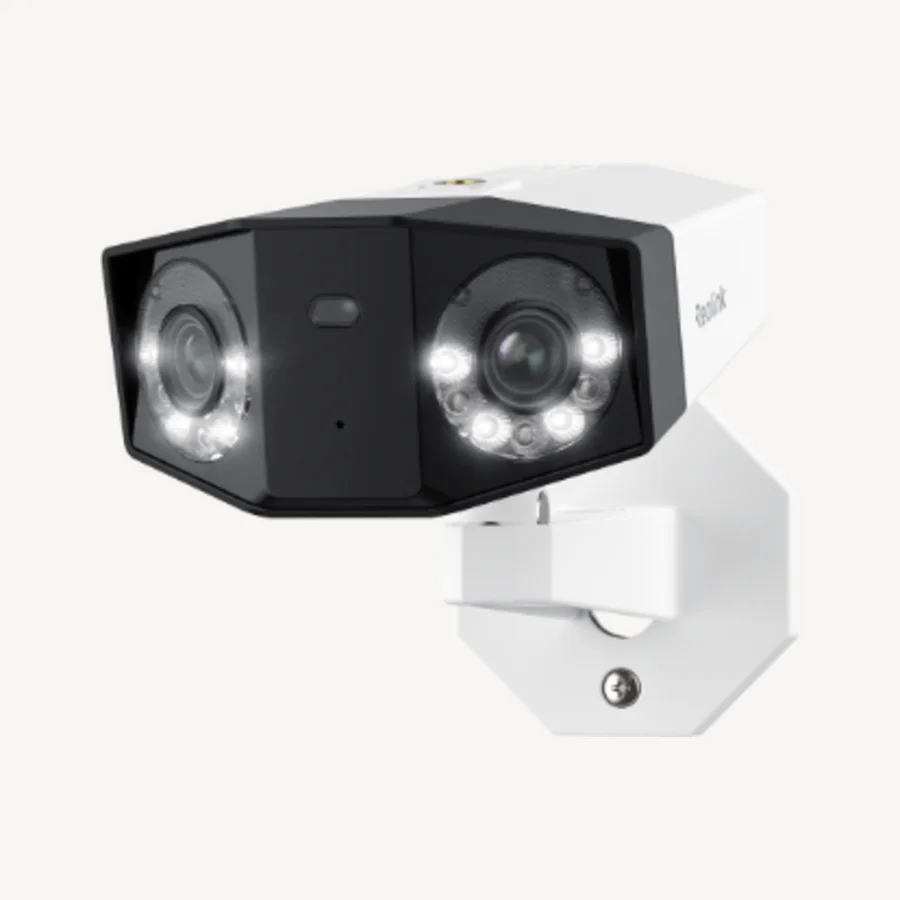
Quick answer: FTP on a compatible Reolink camera or NVR uploads selected video clips or images to a server you control. It is useful for an off-device copy, but it is not a complete backup strategy by itself and is not the same as Reolink Cloud.
What FTP does
FTP stands for File Transfer Protocol. The camera or recorder acts as a client and sends files to a configured server folder. Depending on the exact device and software, you can choose video, images, motion-triggered material, or scheduled uploads. Reolink documents default FTP port 21 and support for FTP or FTPS on compatible products, but not SFTP.
An upload is only successful if the server is reachable, the account can write to the chosen directory, enough storage remains, and the network stays available during transfer.
FTP versus other Reolink storage
| Storage | Where footage lives | Strength | Main tradeoff |
|---|---|---|---|
| microSD | Inside the camera | Simple and local | Card can be lost with the camera |
| Home Hub | Separate local hub | Central storage for a smaller supported system | Model and capacity compatibility matter |
| NVR | Local recorder and hard drive | Multi-camera and continuous-recording path | Recorder hardware, wiring, and channel planning |
| FTP or FTPS | Your local or remote server | Flexible off-camera file copy | You manage server security, retention, and bandwidth |
| Reolink Cloud | Reolink's supported cloud service | Managed remote storage on eligible plans | Region, model, feature, and subscription limits |
What you need before setup
- A Reolink camera or NVR that exposes FTP settings.
- An FTP or FTPS server reachable from the device's network.
- The server hostname or IP address, port, username, password, and destination directory.
- A server account with permission to create or upload files.
- Enough capacity and a retention policy that prevents storage from filling silently.
- Upload bandwidth appropriate for the selected resolution, frequency, and number of cameras.
Reolink FTP setting fields
| Field | What to enter | Frequent failure |
|---|---|---|
| Server | FTP hostname or IP address | Using a local address from outside that network |
| Port | Server's listening port; 21 is the common FTP default | Firewall or router blocks the chosen port |
| Username and password | Dedicated server credentials | Wrong password or no write permission |
| Remote directory | Writable destination folder | Folder path does not exist or is restricted |
| Protocol or encryption | FTP or FTPS supported by both ends | Selecting SFTP, which Reolink does not document as supported |
| Upload schedule and type | Video, image, motion, or scheduled options exposed by the device | Schedule does not cover the event being tested |
How to set up Reolink FTP
- Create a dedicated, limited-permission account on the FTP server.
- Create and test the destination folder.
- Open FTP settings in the Reolink App, Client, web interface, or NVR interface supported by your device.
- Enter the server, port, username, password, and directory.
- Select FTP or FTPS to match the server and choose the upload type and schedule.
- Run the built-in connection test where available.
- Trigger a real event and confirm that the resulting file arrives and plays correctly.
- Check timestamps, file naming, retention, and free-space alerts.
Security and reliability
Plain FTP does not provide the transport protection most people expect for internet-facing credentials and footage. Prefer FTPS when both ends support it, keep the server patched, limit the account to one destination, and restrict network exposure. A VPN or a local server can reduce direct public exposure, but configuration depends on your network.
Keep another recording path when footage is important. FTP can fail because of internet loss, DNS, credentials, server downtime, storage limits, or a schedule mistake. Test retrieval periodically instead of treating one successful connection test as proof of ongoing backup.
Why the FTP test fails
- Confirm the server accepts connections from the camera's network, not only from your computer.
- Check protocol and port together; FTP, explicit FTPS, and implicit FTPS are not interchangeable.
- Verify that passive or active connection behavior is compatible with the server and firewall.
- Use a simple writable directory first, then add a longer folder path.
- Check camera time, server time, storage quota, and filename rules.
- Test with a smaller upload or still image to separate connectivity from bandwidth issues.
Frequently asked questions
What is FTP on a Reolink camera?
FTP is an upload option that sends supported Reolink video clips or images to an FTP server. It creates an off-camera copy but requires a compatible camera or recorder, a reachable server, credentials, storage management, and a stable network path.
Does Reolink FTP support SFTP?
Reolink's current support documentation states that supported devices can use FTP and FTPS, but not SFTP. Confirm the protocol choices exposed by your exact model and firmware before configuring a server.
Is Reolink FTP the same as Reolink Cloud?
No. FTP sends files to a server you choose and manage. Reolink Cloud is an optional Reolink service whose availability, plans, supported models, and features vary by region.
Can Reolink upload continuously to FTP?
Some compatible powered cameras and recorders can upload on a schedule, while battery models and other devices may have different limits. Continuous uploads can use substantial bandwidth and server storage, so verify exact model support and retention behavior.