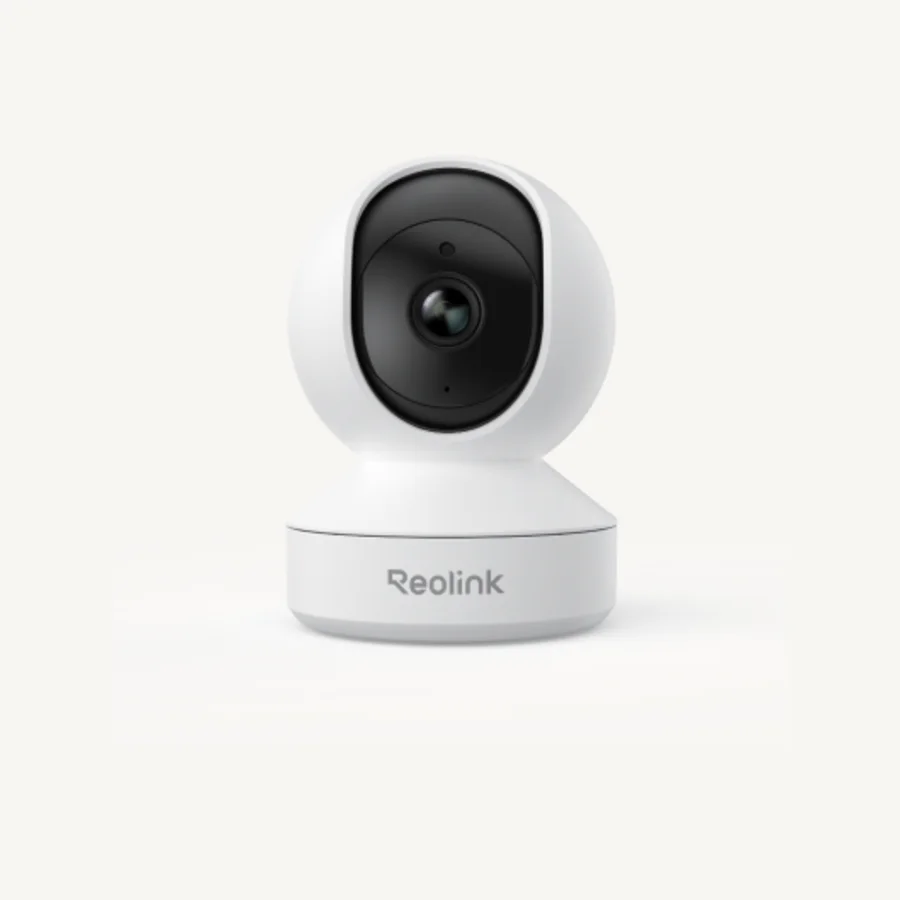
Quick answer: Install Reolink Client to view cameras on Windows or macOS. Add a same-network device from discovery or use its UID for supported remote access. For family access, prefer Advanced Sharing or a separate user account over sharing the administrator password.
View a Reolink camera on a PC
- Download Reolink Client from Reolink's official software page.
- Connect the computer and camera or recorder to the same router for the easiest first login.
- Open Client and look for the device on the local network.
- If it is not discovered, add it with its IP address on the LAN or its UID where remote access is supported.
- Enter the device username and password, then confirm live view and playback separately.
Live view proves that the stream works; it does not prove that footage is being recorded. Check playback from the microSD card, Home Hub, NVR, or configured server.
View remotely away from home
A Reolink device normally needs power, a working local network, internet access, and enabled UID service for simple remote viewing. The phone or PC also needs internet access. If local viewing works but remote viewing does not, check the device's network status, UID setting, router connection, and current App or Client version before changing firewall rules.
Directly connecting a camera to a PC is a separate troubleshooting configuration. It can be useful for initial access, but it does not automatically provide internet or normal remote viewing.
Add a Reolink camera to another phone
- Install the current Reolink App on the second phone.
- Use an Advanced Sharing link or code if the device offers it.
- Otherwise scan or enter the device UID and sign in with a dedicated device user where possible.
- Confirm which cameras, playback, audio, and controls the recipient can access.
- Test access on mobile data, then remove it when it is no longer needed.
Basic Sharing versus Advanced Sharing
| Method | How it works | Best use | Main caution |
|---|---|---|---|
| Basic Sharing | Pass the UID or QR code and valid device credentials | Older or unsupported devices | Access follows the supplied account's permissions |
| Advanced Sharing | Create a link or code with supported permission, channel, and date controls | Family, guests, or time-limited access | Not available on every model or software version |
| Separate device user | Create another account on a supported camera or recorder | Ongoing access without exposing the admin login | User roles differ across products |
Reolink says supported Advanced Sharing can provide granular controls and sharing for multiple users. The recipient cannot necessarily reshare or change device settings, depending on the granted permissions. Review the generated access rather than assuming every model behaves the same way.
Sharing security checklist
- Keep the administrator password private and unique.
- Create the least-privileged access the person needs.
- Do not post a device QR code, UID, sharing link, or screen containing credentials publicly.
- Use an expiration date for temporary access when supported.
- Remove old users and sharing records after a move, tenant change, or household change.
- Update the App, Client, recorder, and supported device firmware from official sources.
Turn off or pause a Reolink camera
Three actions are often confused: turning off notifications, stopping recording, and powering off the camera. Muting push alerts does not stop recording. Changing a recording schedule may not stop live view. Disconnecting power stops a wired camera, while supported battery devices may have an on-device power control. If the camera records to an NVR, also check the recorder channel and schedule.
If the camera will not appear
- Confirm the camera or recorder is powered and visible locally.
- Verify the correct username and device password, not merely an account password.
- For local discovery, place both devices on the same LAN and avoid guest-network isolation.
- For remote access, verify internet connectivity and UID status.
- Check whether the shared link expired or the owner revoked access.
- Restart the App or Client before resetting the camera; a factory reset is a last step.
Frequently asked questions
How do I view Reolink cameras on a PC?
Install Reolink Client from Reolink's official download page, open it, and add the camera or recorder. A device on the same LAN may be discovered automatically; remote access normally uses the device UID and valid login credentials.
How do I share a Reolink camera with family?
Use Advanced Sharing when the device supports it because it can limit permissions, channels, and access dates. Basic Sharing passes the device UID or QR code and credentials, so the recipient may receive the same device-level access as that account.
Can two phones connect to one Reolink camera?
Yes. Another phone can add the device with an approved sharing link or code, or with the device UID and a separate user account. Supported sharing limits and permissions vary by model and software version.
Can I temporarily turn off a Reolink camera?
You can disconnect power for a wired camera or power off a supported battery model, but disabling alerts or recording is not the same as powering the camera off. Check the exact device and recorder settings before relying on a privacy pause.